 Fetchpaw
A browser extension for Chrome and Edge
Last month's invoices, fetched.
Fetchpaw opens each supplier's billing page in your own browser, with the sign-ins you already have, and saves that month's invoices as tidy PDFs. Drop in your bank statement and it shows which payments still have no invoice.
Coming to the Chrome Web Store. Free for up to three suppliers, forever.

The first week of every month
A dozen billing pages. One afternoon. Every month.
Open the supplier, find billing, pick the right team, download, rename, and move on to the next one. Then work out which card payments on the statement still have no invoice for your accountant.
Fetchpaw does the round for you. It already knows 54 common suppliers, and it can learn any other billing page you can sign in to.
- Vercel
- Supabase
- GitHub
- Google Ads
- Meta Ads
- AWS
- Google Workspace
- Microsoft
- OpenAI
- Anthropic
- Cursor
- Notion
- Slack
- Figma
- Linear
- Atlassian
- Cloudflare
- Hetzner
- DigitalOcean
- Hostinger
- Shopify
- HubSpot
- Twilio
- Adobe
- Canva
- Zoom
- Mailchimp
- Zapier
- Sentry
- and any site you sign in to
How it works
Press one button. Answer the odd question.
-
Pick the month and press Fetch invoices
Each supplier opens in a background tab, grouped together so they stay out of your way. You keep working while it goes through them.
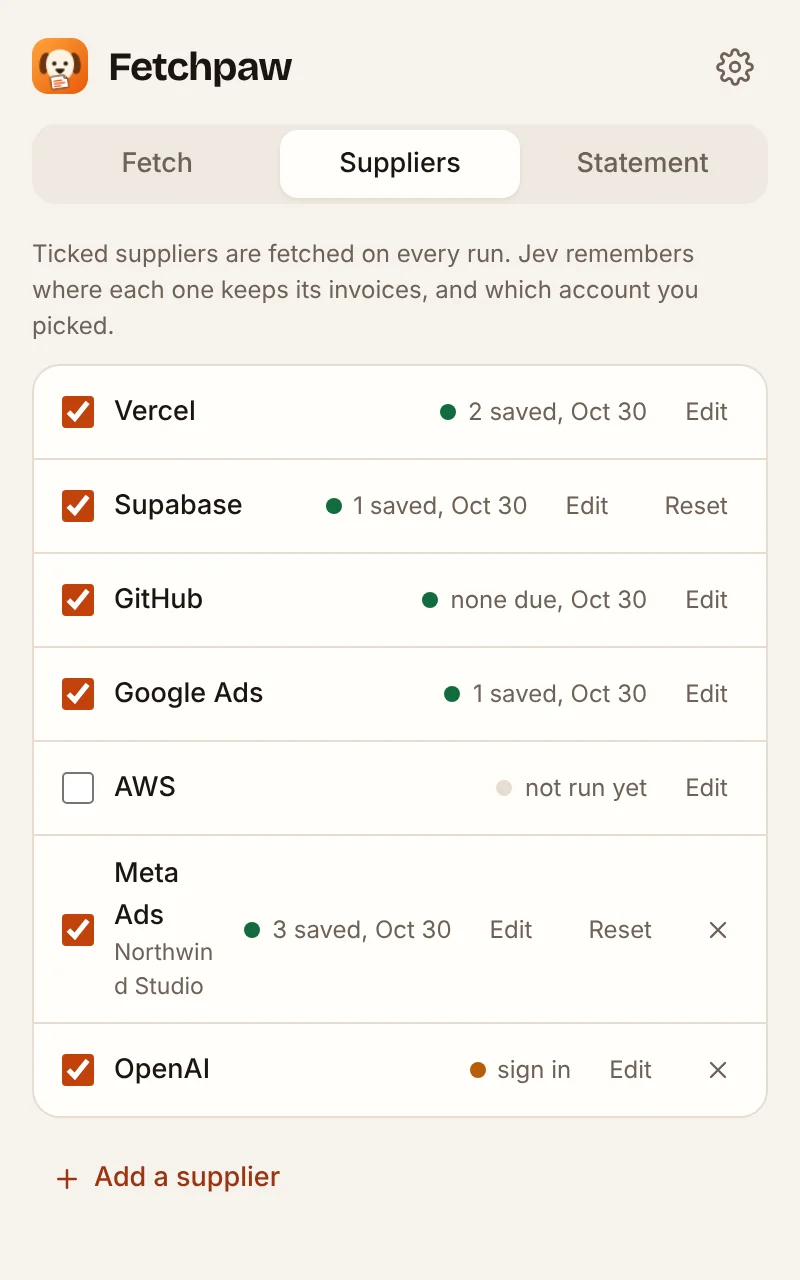
- Jev, the AI that drives it, picks each click on a page it has not seen before.
- The invoice page is remembered, so next month goes straight there.
- Every supplier gets a status: saved, nothing due, or needs you to sign in.
-
It asks instead of guessing
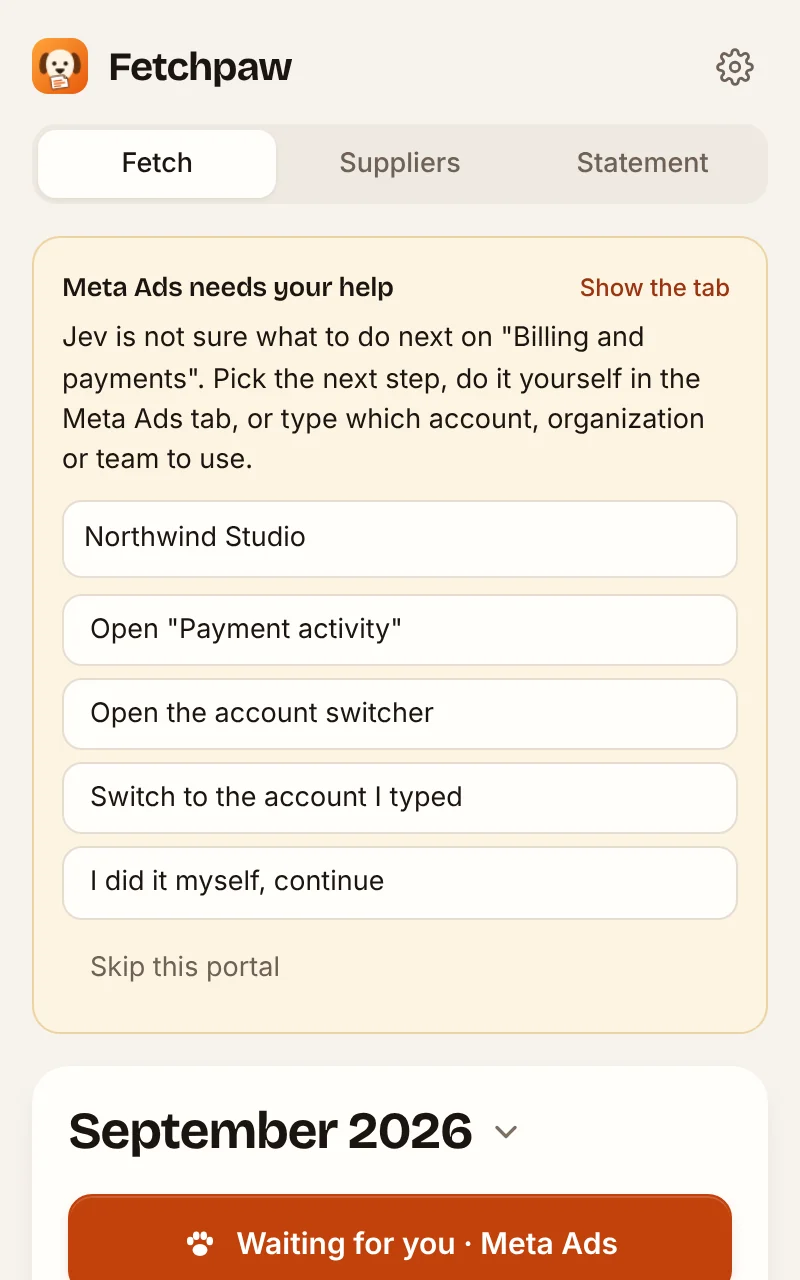
Which team, which ad account, a sign-in page it cannot pass: you get one short question in the side panel, with the likely answers as buttons.
- Type the account name once. It switches to it and remembers it for next month.
- Anything that looks like a payment, a plan change, a setting or a toggle stops and waits for you.
-
Drop in the bank statement
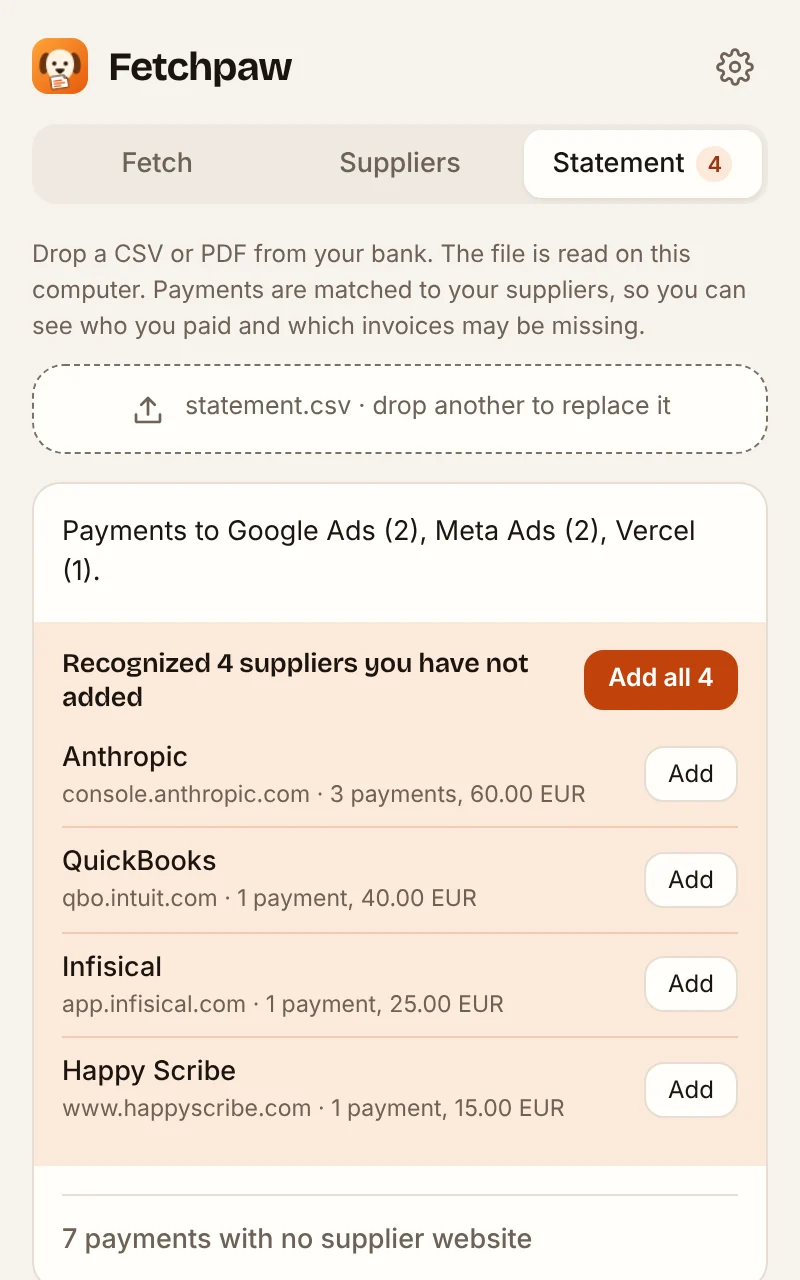
A CSV or PDF from your bank, read on your computer and never uploaded. Payments are matched to your suppliers, so you see who you paid and which invoices are still missing.
- Card lines like
FACEBK *S LXVBNWSare recognized as Meta Ads. - Suppliers you pay but have not added yet can be added in one click.
- Card lines like


What you get
One folder per month, ready for your accountant.
Files are named by date, supplier and invoice number, so they sort themselves. A summary.csv next to them lists every payment on the statement that still has no invoice.
Save to Downloads, or pick any folder on your computer once and it is used every month.
Invoices/
└─ 2026-09/
   ├─ Vercel/
   │  ├─ 2026-09-01_vercel_INV-4821.pdf
   │  └─ 2026-09-01_vercel_INV-4822.pdf
   ├─ Supabase/
   │  └─ 2026-09-03_supabase_SB-77310.pdf
   ├─ Google Ads/
   │  └─ 2026-09-30_google-ads_5512094471.pdf
   ├─ Meta Ads/
   │  ├─ 2026-09-07_meta-ads_FBADS-1.pdf
   │  ├─ 2026-09-14_meta-ads_FBADS-2.pdf
   │  └─ 2026-09-21_meta-ads_FBADS-3.pdf
   └─ summary.csv   # 2 payments still missing an invoice
The details
Built for the way billing pages actually behave.
Switches accounts
Several teams or ad accounts under one sign-in? Name the one to use and it switches to it every month.
A status for every supplier
Green when invoices were saved, amber when it needs a sign-in, with a retry right there.
Saves where you want
Downloads, or a folder you choose. Invoices it already saved are skipped next time.
A monthly reminder
An optional nudge in the first days of the month to fetch the one that just ended.
Never pays or cancels
It only reads billing pages and downloads invoices. Payments, plans and settings are left alone.
No passwords
It works inside the browser session you already have. There is no account to create with us.
Privacy
Your sign-ins and your bank statement stay with you.
Fetchpaw runs in your browser. The only thing that leaves it is a masked description of the billing page, sent to the AI that picks the next click.
- Passwords are never read or stored.It uses the sessions already open in your browser.
- Bank statements are never uploaded.They are read and matched in the browser. Only if you ask Jev about unknown payees are their names sent, never amounts or account numbers.
- Emails, IBANs, card numbers and tokens are maskedbefore any page text is sent to the AI.
- Nothing is sent to us.No analytics, no tracking and no ads in the extension.
- It only reaches the sites you choose.Access is asked per supplier, the first time you fetch from it.
Early access
Free for your first three suppliers. Forever.
During early access everything is free, for as many suppliers as you like. After launch, up to three suppliers stay free for good. Paid plans for more suppliers, with a free trial, come later.
Questions
Before you install
Which browsers does it work in?
Google Chrome 116 or newer, and Microsoft Edge. It lives in the browser's side panel, so it stays open while the supplier tabs load.
Which suppliers can it fetch from?
It knows 54 common suppliers out of the box, from Vercel and Google Ads to Hetzner and Mailchimp. Any other supplier can be added with the address of its billing page. Jev learns the way the first time and the page is remembered after that.
What is Jev, and what does it see?
Jev is an AI service by TypeSafe that decides which link or button leads to your invoices. When Jev is unsure, Claude by Anthropic can give a second opinion on that one step. For each step they get the page title, the address without its query string, a short excerpt of the visible text and the names of the links and buttons, with emails, IBANs, card numbers and tokens masked first. Neither sees your bank statement. If you press Ask Jev who these are on a statement, only the names of the payees it did not recognize are sent.
Can it pay, cancel or change anything?
No. Anything that looks like a payment, a plan, a setting or a toggle stops the run and asks you first. Its job is to read billing pages and download invoices.
What happens when a supplier asks me to sign in?
That supplier is marked "needs you to sign in" and the rest carry on. Sign in in that tab and press retry for just that one.
What does it cost?
Nothing during early access. After launch, up to three suppliers stay free forever, and paid plans with a free trial cover more. The AI is included in every plan; there is no key to bring.